
 Good to know which APM tools are the leaders:
Good to know which APM tools are the leaders:
OM/OMi Monitoring Tips
The tips below will help you with monitoring outcomes, I have used these steps to ensure the deployment and ongoing process of monitoring is successful, I hope these will help you.
These were based on OM (Operations manager deployments)
After following these key steps, you will have a mature monitoring solution.
This script runs on your laptop running Windows OS and provides useful information, such as OS, Resources, events, and configured settings, it uses powershell scripting, HTML and CSS.
I wrote this to help me detail my laptop and PC’s configuration quickly and I didn’t want to download any software from the net. I used the Microsoft Powershell forums and script repository to help build the script.
Reference: https://technet.microsoft.com/en-us/scriptcenter/bb410849.aspx
There are two files, the powershell script, and a css file, download from the github link below and run the powershell script as administrator, you should get a HTML page with all the details. (tested only on Windows 8.x running powershell only)
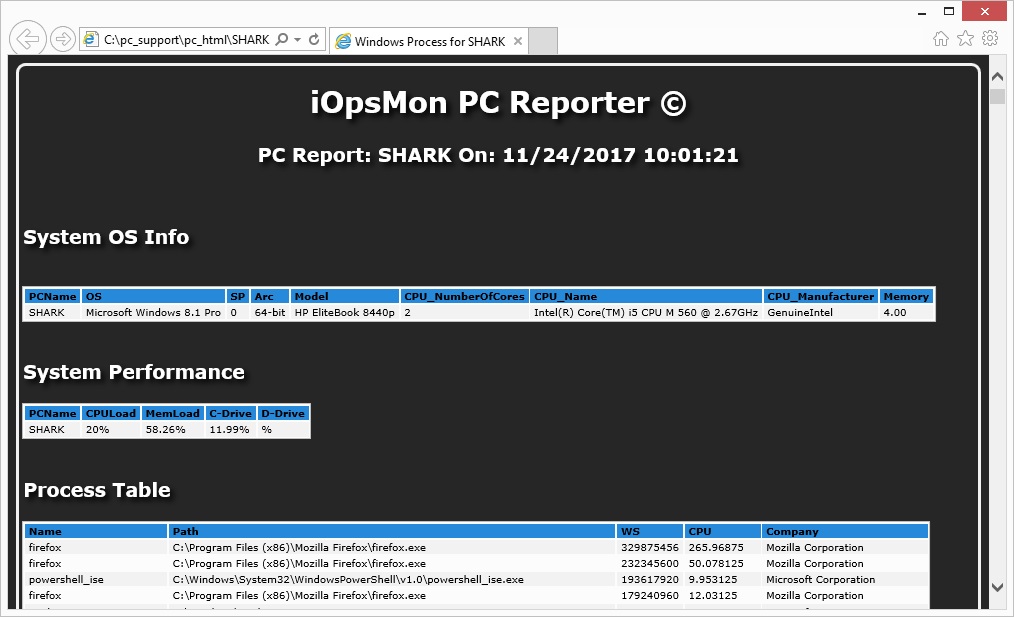
https://github.com/iopsmon/windows_reporter
This is my script to quickly obtain all OMi 10.x logs (log4j) and then scan through them to see ERRORS, WARNINGS and DEBUG events.
The script is run relative to to the time you run the script and uses the current date, this is due to limiting the amount of data as there are many logs and enteries, so its designed for the OMi administrator to quickly see if there are any ERROR’s across the many logs files and help investigate any problems.
Script Functions:
You can then look at the files created, there are three files:
(If you want debug info, then you will need to enable this within OMi)
The enviroment was OMi10.6 / RHEL 6.5
The script is located on github
https://github.com/iopsmon/omi_logs_scan
 iOpsMon